Reports & analytics
The Reports page summarizes messages, response times, contacts, labels, employee performance, campaigns, workflows and AI usage for any time range.
The Reports (Báo cáo) page turns your accounts' activity into numbers and charts across 8 tabs: Overview, Messages, Contacts, Labels, Employees, Campaigns, Workflow, AI (Tổng quan, Tin nhắn, Liên hệ, Nhãn, Nhân viên, Chiến dịch, Workflow, AI), helping you judge how fast customers get answers and how well your campaigns and automations perform.
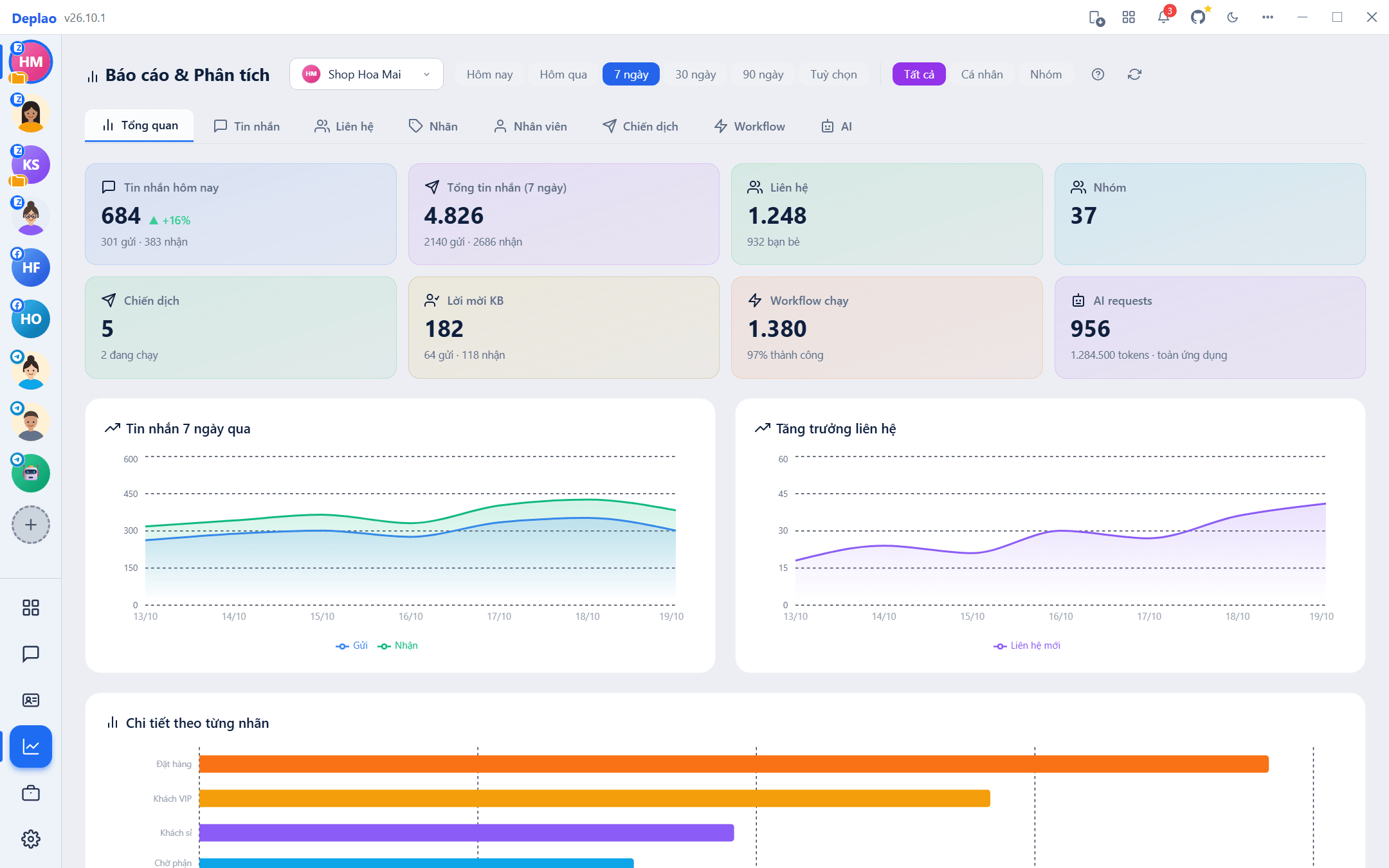
Opening Reports
- Left sidebar → Reports.
- In the CRM, click the chart icon in the top-right corner.
- Or use the All features (Tất cả tính năng) button → the Reports group to open a specific tab directly.
The ? button (Report guide) explains how the current tab is calculated, and Refresh (Làm mới) reloads the latest numbers.
Data filters
- Accounts: pick one account, several, or All accounts (hover a row → Only this). Your choice is remembered; the first time, it defaults to the account you have open.
- Combining several accounts: the numbers are added up, and percentages and averages are recalculated from the totals (not averaged across percentages); the Overview tab gains a By account table.
- Time range: Today · Yesterday · 7 days · 30 days · 90 days · Custom (from → to). Default: 7 days.
- Conversation type: All · Personal (1-1 chats) · Groups, applies to the message statistics.
- There's no separate channel filter: pick the accounts you want in the Accounts filter.
- If an account can't be loaded, the report still shows the rest, with a warning naming the missing account.
How days are counted
- Reports use calendar days in your computer's local time: Today = from 00:00 today until now; Yesterday = all of yesterday.
- 7 / 30 / 90 days = today plus the previous 6 / 29 / 89 days, starting at 00:00; each point on a chart is one day (00:00–23:59), and the last point is today.
- Ranges of 2 days or less are plotted by hour, longer ones by day; Custom covers the full days you pick (future dates can't be selected).
Overview tab
The key numbers on one screen:
| Metric | Meaning |
|---|---|
| Messages today | Sent · received, up / down versus yesterday |
| Total messages (period) | Sent · received in the selected time range |
| Contacts | Total contacts, with the number of friends |
| Groups | Number of saved groups |
| Campaigns | Total, and how many are running |
| Friend requests | Friend requests sent · received in the period |
| Workflow runs | Number of runs and % successful |
| AI requests | Requests and tokens (whole app) |
- Messages by hour / last N days: a Sent · Received chart.
- Contact growth: the number of 1-1 conversations per day, each conversation counts once, on the day of its first message within the selected range.
- Breakdown by label: how many times each Local label was applied in the period.
- By account (when 2 or more accounts are selected): messages, sent, received, today, contacts, friends, groups and each account's share of the messages.
Messages tab
- KPIs: Today · Total messages (period) · Average per day · Send ratio (% of all messages that you sent).
- Response time: Average · Median · Fastest · Slowest · number of conversations with a reply, measured from the customer's message to your reply.
- Response-time distribution: under 1 minute, 1–5 minutes, 5–15 minutes … over 24 hours, plus the % of messages answered within 15 minutes.
- Average response time by hour of day: shows the hours when you reply fastest and slowest.
- Message volume: Sent · Received · Total by hour or by day.
- Peak-hours heatmap: a Monday → Sunday × 24-hour grid where darker cells mean more messages, find the times when customers write the most.
How response time is measured: only 1-1 chats and replies within 7 days count (forgotten conversations are ignored); this section is hidden when the conversation type is set to Groups.
Contacts tab
- KPIs: Total contacts · Friends · Groups · Tagged (with the number untagged).
- Contact growth: the number of 1-1 conversations per day, counted on the day of their first message in the period.
- Contact breakdown: a pie chart of Friends · Strangers · Groups.
- Friend requests: Sent / Received in the period, with a daily chart.
- Contacts, friends and groups are current totals (not limited to the time range) and are summed per account: someone who is a contact of 2 accounts is counted twice.
Labels tab
- Only covers Local labels (labels created in the app), not Zalo labels.
- KPIs: Total label applications in the period · Labels used · Average per day.
- Label applications per day and Breakdown by label (each bar in the label's color): see which labels get used the most.
Employees tab
For the owner (Boss) to track each employee's performance over the selected period. You need employees set up in Settings → Employees (Cài đặt → Nhân viên; see Employees & Workspaces).
| Metric | Meaning |
|---|---|
| Employees | Number of employees and how many are active |
| Messages sent | Messages employees sent in the period |
| Conversations handled | Number of distinct conversations handled |
| Average response | The team's average response time |
| Total hours online | Plus the average hours per employee |
- Employee filter: pick one or more people to compare (photo, name, Boss / Employee role), or All for the whole team.
- Messages & conversations comparison; Message distribution and Online-hours distribution (pie charts).
- Messages per day and Online hours per day, one color per employee.
- Response-speed ranking, Response-time distribution (under 1 minute … over 24 hours), Activity by hour.
- Multi-dimensional comparison (radar): messages sent, conversations, hours online, response speed, needs at least 2 employees with data.
- The employee detail table has a Performance column; the Export CSV button lets you send the report on.
How it's calculated: online hours are based on employees' login sessions (sessions spanning several days are split correctly across those days) and aren't broken down by account. When you filter by account, messages sent, conversations, response time and hourly activity only count the selected accounts.
Campaigns tab
- KPIs: Total campaigns · Sent · Errors · Replies · Delivery success % (with Response %).
- Replies = recipients who wrote back after receiving a campaign message. Delivery success % = sent ÷ total contacts; Response % = replies ÷ sent (summed across all campaigns).
- Top campaigns (by messages sent): compares Sent · Replies · Errors for the 10 campaigns that sent the most.
- Campaign details: status, Total, Sent, Errors, Replies, Delivery success %, Response %; an Account column is added when several accounts are selected.
- This tab covers every campaign of the account, regardless of the time range.
Workflow tab
- KPIs: Total runs · Successful · Errors · Success rate · Average run time.
- Runs per day (successful / errors) and Outcome distribution: spot problems quickly.
- Top workflows: ranked by number of runs, with their success rate.
- A workflow attached to several of the selected accounts is only counted once.
AI tab
- KPIs: Total requests · Total tokens · Prompt tokens · Completion tokens.
- AI usage per day (bars = requests, line = tokens) and Breakdown by model.
- Details by model (requests, tokens, average tokens per request) and by AI Assistant: see which assistant uses the most tokens.
- AI numbers cover the whole app; the account filter doesn't apply.
Didn't find your answer?
Message us on Telegram