Syncing old messages
Fetch chat history the app doesn't have yet - Zalo from your phone, Messenger by date range (checkpoint risk), Telegram by scrolling or by message count.
When do you need to sync?
New messages arrive in Deplao automatically while the app is running: nothing else to do. You only need sync when you want older messages the app doesn't have yet (for example, messages from before you signed the account in to Deplao). Each channel works differently:
| Channel | How to get older messages |
|---|---|
| Zalo | Pull the history from Zalo on your phone: the Sync messages from phone (Đồng bộ tin nhắn từ điện thoại) button |
| Download Messenger history: the Sync Facebook messages (Đồng bộ tin nhắn Facebook) button. Only use it when you really need it, because of the checkpoint risk | |
| Personal Telegram | Scroll up in a conversation and older messages load automatically (see the Telegram section at the end) |
Where are the sync buttons? Both buttons sit on the top bar and only appear while you have the matching Zalo / Facebook account open (or when merged mode includes that account). Sync runs on the machine where the account is signed in: employee machines don't have these buttons.
Zalo: Sync messages from phone
Pulls the messages from Zalo on your phone for the period you choose and slots them into the right conversations in Deplao. This is how you bring older Zalo messages into the app (it replaces the old "Load older messages" button).
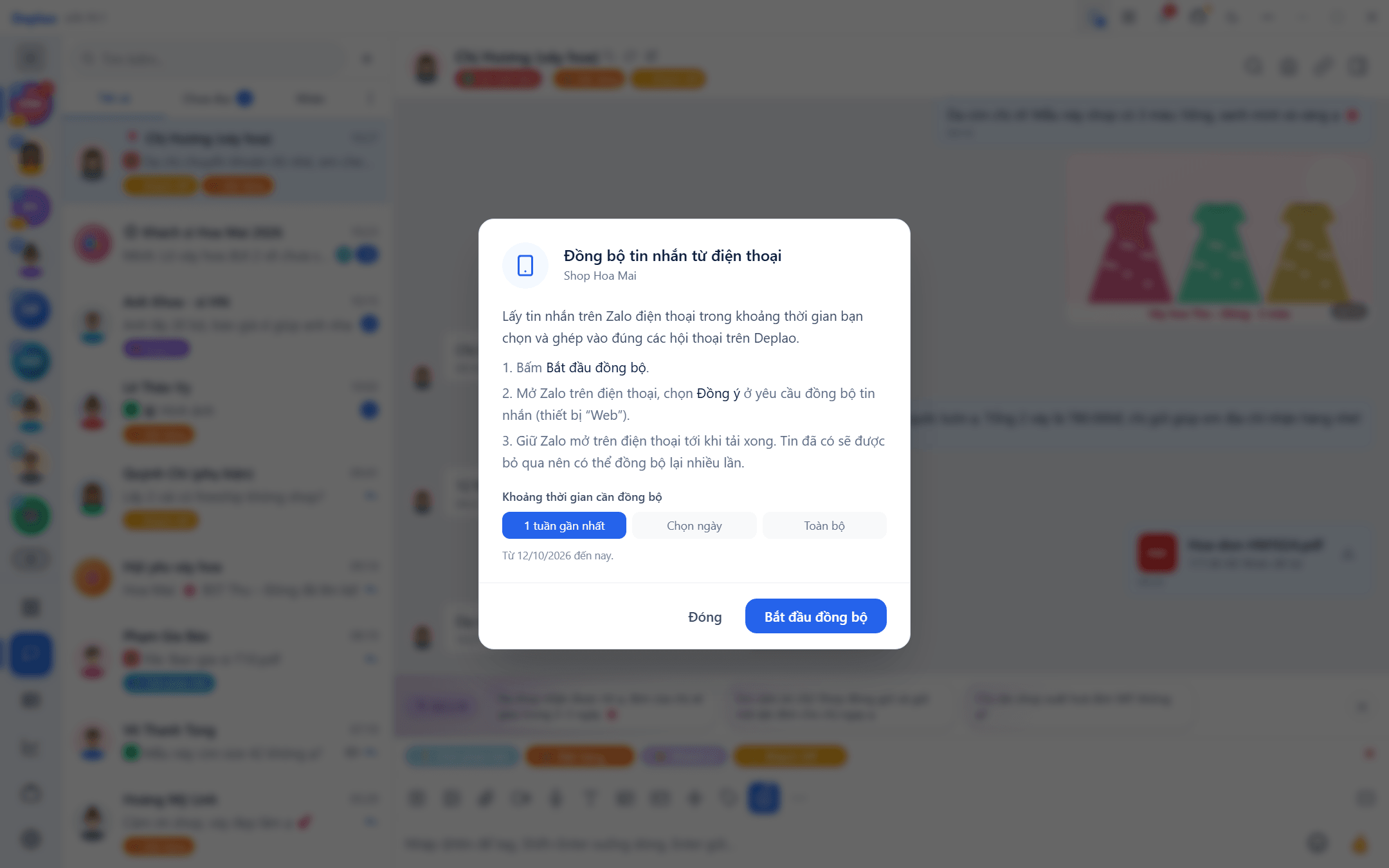
- Open the sync popup: open the Zalo account and click the phone icon Sync messages from phone on the top bar. In merged mode with several Zalo accounts, pick one in the Zalo account to sync (Tài khoản Zalo cần đồng bộ) box.
- Choose the period: Last week (1 tuần gần nhất; default) · Pick dates (Chọn ngày; from → to) · Everything (Toàn bộ), the entire history on the phone, which can take a long time for accounts with many messages.
- Click "Start sync" (Bắt đầu đồng bộ), then confirm on your phone: open Zalo on your phone and choose Agree (Đồng ý) on the message-sync request (from a "Web" device). Confirm right away: after about 3 minutes the request expires and you'll have to start the sync again.
- Keep Zalo open on your phone until it finishes: the popup shows each stage: Confirm on phone → Phone prepares data → Download to computer → Decrypt → Merge messages into conversations. Click Hide (Ẩn) to let it run in the background, or Cancel sync (Huỷ đồng bộ) to stop.
Results
- The popup reports the number of New messages and Conversations merged. Messages you already have and unsupported message types are skipped; messages outside the period aren't downloaded.
- Messages go into the matching existing conversations; conversations that only exist on the phone are created with their name and avatar. Conversations you can no longer access (deleted, or groups you've left) can't be imported.
- Includes text, photos, videos, files, stickers, voice messages, contact cards, locations, OA account newsletters…
- Older photos / videos may have expired on Zalo's servers: the message is still imported but shows "Photo expired" / "Video expired" (with a Retry download button).
- You can sync as many times as you like: messages you already have are skipped, so overlapping with a previous period is fine.
What you need for sync to work
- The Zalo account is online in Deplao.
- A phone with Zalo signed in to that same account, with a network connection, and Zalo kept open throughout. If the phone pauses, the app tells you: reopen Zalo to continue; if it waits too long (about 30 minutes), the session stops on its own.
- Each account runs one sync session at a time. If Zalo on the phone is restoring its data, try again later.
Facebook: Sync Messenger history
Downloads Messenger messages for the period you choose, for every conversation with activity in that period: page by page until the whole period is covered, with no message limit, running in the background and cancellable at any time.
If you don't need the old messages, don't download them. New messages still arrive on their own while Deplao is running: no sync needed. Downloading history sends a lot of requests to Facebook: Deplao paces itself like a real user (random pauses between pages, a longer break after every 30–50 pages, at most about 240 pages per hour, and an automatic stop when Facebook shows signs of restriction), but there is still a risk of a checkpoint, Facebook asking you to verify or temporarily locking the account. Choose the shortest period that covers what you need.
- Open the sync popup: open the Facebook account and click Sync Facebook messages (the circular-arrow button) on the top bar. With several Facebook accounts, pick one in the Facebook account to sync (Tài khoản Facebook cần đồng bộ) box.
- Choose the period: Last week (default) · Pick dates · Everything. "Everything" takes the longest, sends the most requests and carries the highest checkpoint risk: only choose it when you really need it.
- Acknowledge the risk and start: read the warning, tick I understand the risk and still want to download (Tôi hiểu rủi ro và vẫn muốn tải; you have to tick it for every download) → click Start sync.
- Watch it or leave it in the background: the popup shows the conversation being downloaded, the reason for and length of the current pause (counting down), and the New messages / Conversations counts. Click Hide to run in the background, Cancel sync to stop: messages already downloaded are kept.
Notes
- Large downloads can take a few hours. Messages you already have are skipped; Page template messages that used to show up empty are repaired.
- Older messages in end-to-end encrypted conversations can't be downloaded (Facebook doesn't let a new device read them): you only get messages received while Deplao is running.
- When Facebook shows signs of restriction, asks for verification or the session expires, sync stops on its own to protect the account and history downloads pause for about 30 minutes.
- The Facebook account must be connected. If the app reports that Facebook didn't respond for some conversations, click Sync again to retry.
- Scrolling to the top of a Facebook conversation also loads older messages: using the same safe pacing described above.
Telegram
- Personal Telegram accounts: scroll to the top of a conversation and older messages load from Telegram automatically. To grab many messages quickly, click the download icon Load messages from Telegram (Tải tin nhắn từ Telegram) at the top of the chat and enter how many messages you want (up to 5,000).
- The Sync Telegram conversations and messages (Đồng bộ hội thoại và tin nhắn Telegram) button on the top bar reloads messages for the whole account in the background; conversations update on their own.
- Telegram bots: Telegram doesn't let bots reload chat history at will, a bot only receives the messages still waiting in its queue.
Didn't find your answer?
Message us on Telegram