Employees & Workspaces
Let employees work from their own computers over LAN or the Internet, with per-module and per-account permissions, performance tracking and workspaces.
Several employees can handle messages from their own computers at the same time: while the accounts and data stay on the Boss machine, with permissions set per module and per account.
How it works
The Boss machine (the host) is signed in to the Zalo, Facebook and Telegram accounts and holds all the data. Employees install Deplao on their own computers, sign in with an account the Boss gives them, and connect to the Boss machine over the local network (LAN) or the Internet.
| Role | Permissions |
|---|---|
| Boss | Full control: accounts, employees, permissions, turning on connections and the Internet address |
| Employee | Only sees the modules and accounts assigned to them; works from their own computer over LAN or the Internet |
- No full data copy: employee machines read conversations, messages and customers directly from the Boss machine when needed; they only keep a photo / file cache (cleaned up automatically above 2 GB, see Settings → Storage (Cài đặt → Lưu trữ)).
- Two-way real time: new messages, edits, recalls / deletions and reactions show up immediately on both the Boss machine and employee machines.
- Zalo, Facebook and Telegram all run through the Boss machine: employees send messages, react, manage groups… as usual; adding, re-signing or removing accounts is only done on the Boss machine.
- See who replied: messages sent by an employee show a small avatar of that employee next to them (hover to see "Sent by: …").
Step-by-step setup
- The Boss creates employee accounts: go to Settings → Employees → Add employee (Cài đặt → Nhân viên → Thêm nhân viên): enter a username, password and display name (avatar and group are optional), tick the modules they can use and the accounts they're responsible for → Create employee (Tạo nhân viên).
- The Boss turns on the LAN connection: on the same page, the Connection (Kết nối) tab → the "LAN connection" box: keep the default port 9900 → Turn on (Bật), and also turn on "Start automatically when the app opens" (Tự động bật khi mở app). The "Connection address" section shows an address like
192.168.1.10:9900to give to employees on the same network. - (Optional) Open up for remote employees: go to Settings → Internet & Cloud → Internet address (Cài đặt → Internet & Đám mây → Địa chỉ Internet), choose how to create the address, turn on the Employees & API (Nhân viên và API) line, then copy the address (
https://…) and send it to your employees. The LAN connection from step 2 must stay on. - Employees sign in: on the employee's machine: Dashboard → Employee sign-in (Đăng nhập dành cho nhân viên; when the machine has no accounts yet), or Settings → Workspace → Add workspace (Cài đặt → Workspace → Thêm workspace) → type "Remote (Employee)" (Remote (Nhân viên)). Enter the Boss address (IP + port, or the Internet address), username and password → Sign in.
- Start working: the employee's title bar shows "Online - employee name" with Disconnect (Ngắt kết nối) / Reconnect (Kết nối lại) buttons; employees only see the modules and accounts assigned to them.
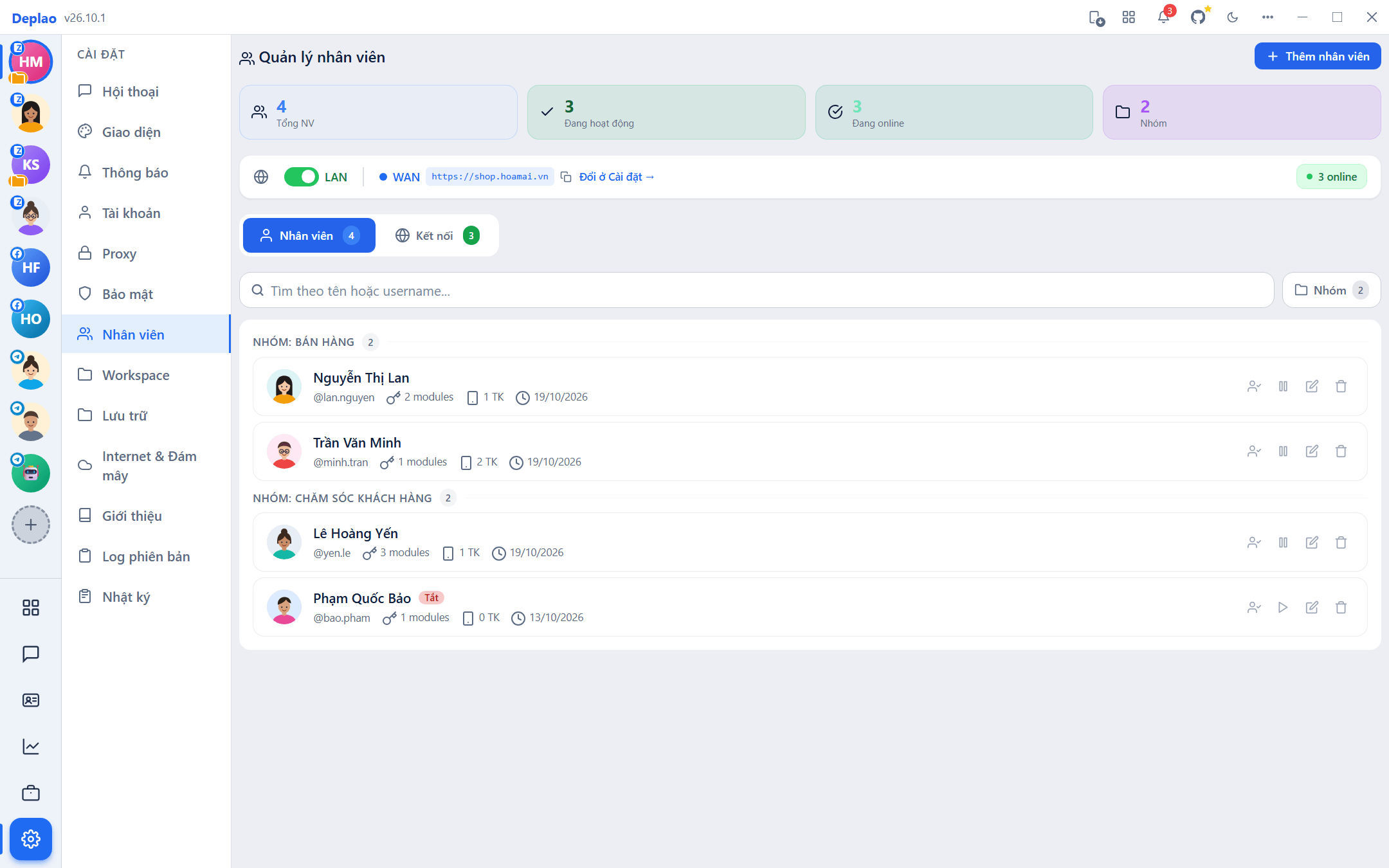
The top of Settings → Employees has a quick LAN on/off switch, the WAN status and the number of employees online. The Groups (Nhóm) button lets you organize employees into groups (e.g. Customer care, Warehouse).
LAN or Internet?
| LAN (same local network | Internet) remote work | |
|---|---|---|
| Characteristics | Fast and stable, doesn't go over the Internet | No router port forwarding, static IP or VPS needed |
| Employees enter | The Boss machine's IP:port | The Internet address the Boss sends them |
| Notes | Give the Boss machine a static IP so the address doesn't change after each restart | The address is only created and turned on / off in Settings → Internet & Cloud → Internet address; the Connection tab just shows it again |
- Temporary address: no account needed, but it changes every time you restart, you have to send it to employees again. Only good for trying things out.
- Cloudflare automatic (recommended): connect a Cloudflare account with a domain (the Free plan is enough) for a fixed address; employees only need to enter it once.
- ngrok / Cloudflare manual: use your own ngrok account or a Cloudflare tunnel you manage yourself.
- When the address changes, the Connection tab shows "The employee address has changed" (Địa chỉ cho nhân viên đã đổi) with a Copy button. Employees connected over LAN are notified and switch automatically; remote employees paste the new address into the Reconnect box on their title bar.
For each way of creating an address, see Internet & Cloud.
Automatic reconnection, no missed messages
- If the network drops or the Boss machine restarts: employee machines reconnect on their own and catch up on the events they missed; while waiting they keep the data they're viewing (the title bar shows "Restoring…" (Đang khôi phục…) or "Offline").
- If the Boss's temporary address has changed: click Reconnect → paste the new address → "Connect to new address" (Kết nối địa chỉ mới), no need to re-enter the password. If the Boss has just announced a new address, simply click Use (Dùng).
- Employee login sessions last 7 days; when one expires or is revoked, click Reconnect and enter the password.
- The Boss machine must have Deplao open and be online. Turn on "Start automatically when the app opens" (Connection tab) so employees reconnect as soon as the Boss opens the app.
Permissions & security
When creating / editing an employee, the Boss ticks each module under Module access (Quyền truy cập module) and picks exactly the accounts to assign. The Boss machine checks permissions on every action (reading, sending, downloading files), even when the employee works remotely.
| Module | Allows |
|---|---|
| Chat | Sending / receiving messages |
| Friends (Bạn bè) | Friend list, contacts |
| CRM | Customers, labels, campaigns |
| ERP | Task management |
| Workflow | Automation |
| Integrations (Tích hợp) | POS, shipping, payments |
| Statistics (Thống kê) | The Reports page |
| AI | AI Assistant |
- Settings permissions: "Manage Zalo accounts" (Quản lý TK Zalo; view / delete accounts) and "Manage employees" (Quản lý nhân viên) should only go to people you trust. Appearance, Notifications, Storage, About and Version log are always available; the Internet & Cloud page only exists on the Boss machine.
- Changing permissions or assigned accounts: takes effect immediately on employees who are online; any page they no longer have access to sends them back to the Dashboard.
- Disabling, deleting or changing the password of an employee → their login session is revoked immediately, and if they're online they're disconnected with the reason.
- Sign out all employees (Đăng xuất tất cả nhân viên; Connection tab): use it if you suspect an account has leaked, every employee machine, even offline ones, must sign in again.
- Preview as an employee: the "Sign in as this employee" (Đăng nhập với tư cách nhân viên này) button next to each employee shows the Boss exactly what that person sees (the title bar shows "Viewing: …" (Đang xem: …)); click Exit to return.
Tracking employee performance
Open Reports → Employees (Báo cáo → Nhân viên) and choose the time range at the top of the page (see Reports & analytics).
- Totals: number of employees, messages sent, conversations handled, average response time, total hours online.
- Comparisons: each person's messages & conversations, messages and online hours per day, response-speed ranking, radar chart, activity by hour of day.
- Filter employees: pick a few people or "All"; the detail table has an Export CSV button.
- The Settings → Employees page has quick stats: total employees, active, online, number of groups; the Connection tab lists who is online, from which IP and for how long.
Workspaces: keeping data separate
Each workspace has its own database, photo / file folder, accounts and settings: use them to separate stores or companies, or to be a Boss and also sign in as an employee somewhere else on the same computer. Up to 5 workspaces.
- Local (Boss / Standalone): runs directly on this machine, signs in to accounts and can open connections for employees.
- Remote (Employee): connects to a Boss machine with the address + an employee account, with an optional "Connect automatically when the app opens" (Tự động kết nối khi mở app).
- Manage them in Settings → Workspace: Add workspace, Switch, Edit, Delete. With 2 or more workspaces, the title bar gets a workspace picker for quick switching, with the unread count of the other workspaces.
- Moving data to another drive (D:, E:…): Settings → Storage → Choose another folder (Cài đặt → Lưu trữ → Chọn thư mục khác), the data is copied over and takes effect immediately. Employee machines only hold a cache, so there's nothing to move.
Deleting a Local workspace permanently deletes its data; deleting a Remote workspace only disconnects from the Boss. The default workspace can't be deleted.
Didn't find your answer?
Message us on Telegram