CRM & customer care
Manage contacts, Zalo and Local labels, internal notes, scan Zalo group members, scan Facebook data and run paced bulk messaging campaigns.
The CRM gathers each account's customers (friends, people who aren't friends yet, and groups) in one place so you can filter, label, take notes, reach out on special occasions and run bulk campaigns with safe spacing between messages.
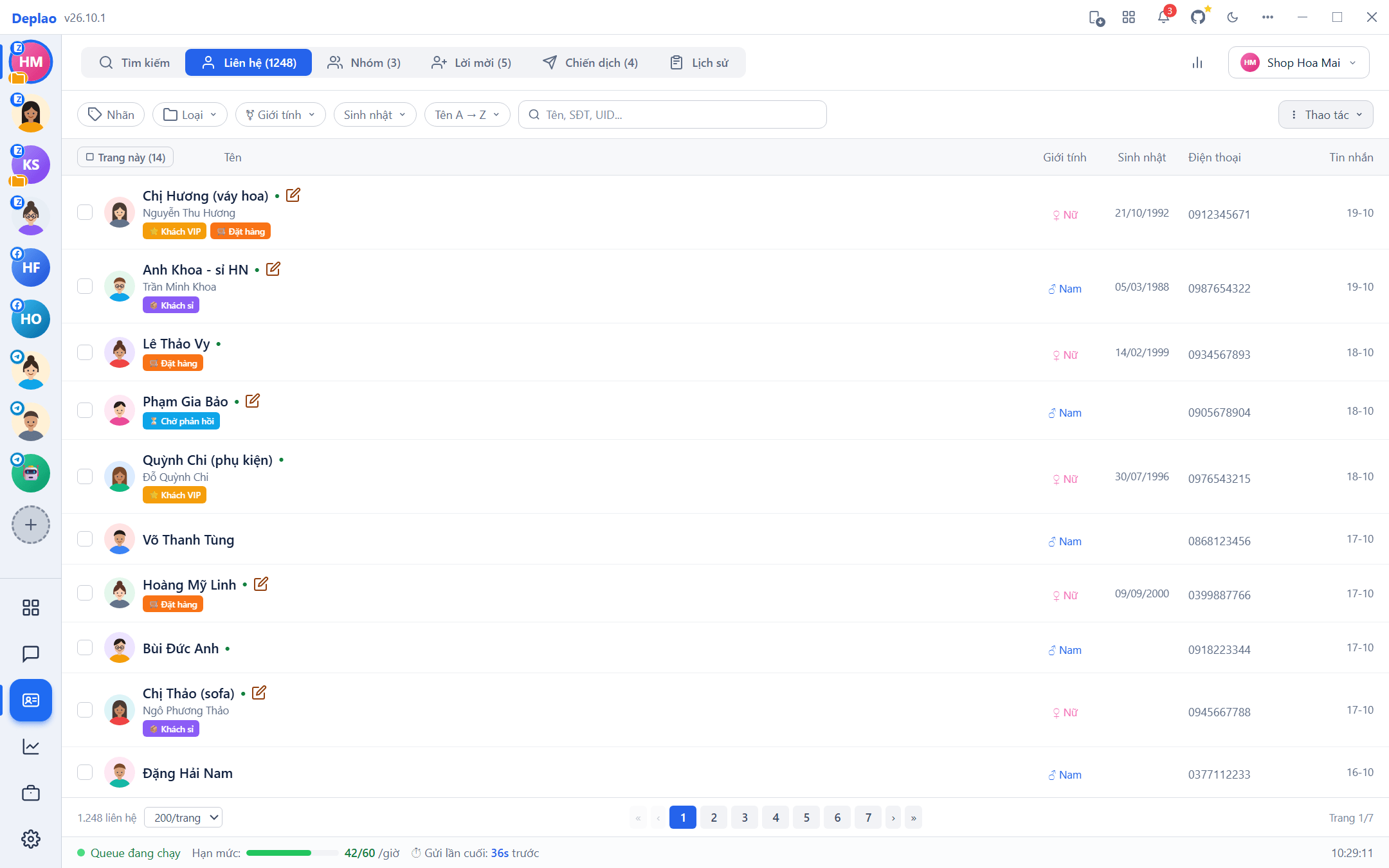
Opening the CRM
Left sidebar → CRM, or the All features (Tất cả tính năng) button on the top bar → the CRM group. Pick the account you want to work with in the top-right corner; the chart icon next to it opens the Reports page.
| Channel | Tabs |
|---|---|
| Zalo | Search (Tìm kiếm) · Contacts (Liên hệ) · Groups (Nhóm) · Invitations (Lời mời) · Campaigns (Chiến dịch) · History (Lịch sử) |
| Telegram (personal account and Bot) | Contacts · Groups · Campaigns · History |
| Contacts · Data scan (Quét dữ liệu) · Scan history (Lịch sử quét) · Statistics (Thống kê) |
- Search (Zalo): enter a phone number to find the user and send a friend request; below it is a list of Friend suggestions.
- Invitations (Zalo): friend requests Received / Sent, accept, decline or cancel; a red dot means there are new requests.
Contact list & filters
The Contacts tab lists the friends, non-friends and groups of the selected account, with their labels, gender, birthday, phone number and the date of the most recent message.
- Search: by name, nickname, phone number or UID.
- Labels: filter by one or more Local labels; Zalo accounts also have a Zalo labels tab.
- Type: Friends · Not friends · Groups · Has phone · Has notes (Friends / Not friends exist only on Zalo).
- Gender and Birthday (Zalo): Male · Female · Unspecified; Today · This week · This month · Has a birthday · None.
- Sort: Name A → Z, Name Z → A, Most recent message.
- Every filter applies to the whole list (not just the current page): the contact count and pagination follow the filtered result.
- Actions: Export CSV of every contact matching the current filters and search (opens in Excel); Add contacts by phone (Zalo).
- Multi-select: tick individual rows or the This page (Trang này) button → the action bar: Add to campaign · Local labels · More → Zalo labels, Leave selected groups (Zalo).
- Click a row to open the profile, click the avatar for a quick view, or click the message icon to start chatting.
Customer profile & internal notes
Click a contact to open the profile panel on the right, with 2 tabs: Labels/Notes (Nhãn/Ghi chú) and Message history (Lịch sử gửi tin).
- Contact info: click Edit to enter Phone, Gender and Birthday (all channels). For Zalo, the phone number, gender and date of birth are pulled from the Zalo profile when available.
- Internal notes: add, edit and delete notes for each customer (the customer never sees them), each with a timestamp. Zalo groups have an extra Zalo tab showing the group's own notes (read-only).
- Labels: pick Local labels (several allowed) and a Zalo label (only 1; click Save label).
- Message history: every campaign message sent to this customer, with Sent / Failed status and the error.
- Sync: when you add a Zalo account, the app automatically loads its friends, labels, quick messages and groups (the Initializing account panel); outdated or broken Zalo names and avatars are refreshed automatically when you open the CRM.
- Add contacts by phone (Zalo, Actions menu): paste a list of numbers (one per line) → Look up → optionally add labels → Add to contacts.
Phone lookup limits: Zalo limits phone-number searches per day, look up at most 30 numbers per hour and no more than 100–200 per day.
Zalo labels & Local labels
Two kinds of labels work side by side to group customers, filter lists and choose campaign recipients.
| Zalo labels | Local labels (recommended) | |
|---|---|---|
| Sync | Two-way with Zalo: labels set in the app show up in Zalo on your phone and vice versa | Only in Deplao, not shown on your phone |
| Labels per conversation | 1 label | Several labels |
| Number of labels | Limited by Zalo | Unlimited |
| Scope | Zalo accounts only | Shared across multiple Zalo, Facebook and Telegram accounts |
| Customization | - | Color, emoji, order, keyboard shortcut |
- Manage them: Settings → Conversations → Manage labels (Cài đặt → Hội thoại → Quản lý nhãn). Local tab: Add label, choose which accounts use it, turn it on / off, drag to reorder, and Copy all Local labels from one account to another.
- The Zalo tab (select exactly 1 connected account): edit, delete and add labels, saved straight to Zalo; Sync to Local (Đồng bộ về Local) copies Zalo labels into Local labels (Add or Replace entirely).
- Apply labels: in the contact profile, by selecting several contacts → Local labels / More → Zalo labels, or right in the chat window.
- Automation: Workflows have the When a label is added or removed (Khi gán hoặc gỡ nhãn) trigger and the Label conversation (Gắn nhãn hội thoại) action (Zalo).
Customer care by gender, birthday & last interaction
Combine the Contacts tab filters with a campaign to reach the right people at the right moment:
| Occasion | How to filter |
|---|---|
| Birthday greetings | Birthday → Today (or This week) → send a greeting with an offer, inserting {name} to address the customer by name |
| Birthday-month offers | At the start of the month, filter Birthday → This month to send gifts to everyone born that month |
| By gender | For International Women's Day (8 March) or Vietnamese Women's Day (20 October), filter Gender → Female; for occasions aimed at men, filter Male |
| Win back old customers | Sort by Most recent message: the Message column shows the last contact, and customers you haven't talked to in a while end up at the bottom |
How to do it:
- CRM → Contacts → set the filters (Birthday, Gender, Labels, Type).
- Tick This page or individual people → Add to campaign (Thêm vào chiến dịch).
- Pick an existing campaign or Create new (Tạo mới) → open the campaign and click Start (Bắt đầu).
The Gender / Birthday filters are only available for Zalo accounts. Inside a campaign, Add contacts → By label (Thêm liên hệ → Theo nhãn) picks recipients by label across the entire contact list.
Groups & group members
The Zalo Groups tab has 2 parts: Group members (Thành viên nhóm) and Scan members (Quét thành viên; see below).
- The group list comes from your conversations; ⋮ menu → Load all groups from Zalo (syncs groups and member details, with progress) or Join group by link.
- Select a group → Load member info (Tải thông tin thành viên): name, UID, phone number (if available), Owner / Deputy role; Find member, Select all, Export list (CSV).
- Select members → Add to campaign or Add to contacts (Thêm vào liên hệ; optionally with labels).
- Telegram: the Groups tab lists the groups, supergroups and forums you've synced, so you can pick members for a Telegram campaign; Telegram bots don't have a full member list.
Scanning Zalo group members
Get the member list of a Zalo group from its invite link, even if the group hides its member list or you're still waiting for approval to join. The results (name, avatar, UID) are saved to the CRM so you can send friend requests, message people or invite them to groups through a campaign.
- Paste the group link: CRM → Groups → Scan members, then paste the Zalo group link (like
https://zalo.me/g/…) or the numeric Group ID. - Join if you're not a member yet: click Join (Tham gia); the result appears right below: Joined, Already a member, Pending approval or Group is full. Groups that require approval receive a pending request: while pending you can already scan, without waiting for an admin.
- Scan: click Scan (Quét). When it's done it reports the number of members and saves them in the Group members tab (the View button in the Members tab).
- Use the results: select members → Add to campaign (friend requests, messages, group invites) or Add to contacts.
- For groups you haven't joined, you need to be at least in pending-approval status; groups with join approval turned off can't be scanned.
- Member UIDs can't be shared between accounts (Zalo's policy): scan with the same account that will send the campaign.
- The Share (Chia sẻ) button submits the group to the community's shared group library (pending admin review); Explore (Khám phá) the shared library to find existing groups by category.
- Scan and send in moderation so your Zalo account doesn't get restricted.
Scanning Facebook data
For Facebook accounts, the CRM has a Data scan tab: each scan session is its own tab (which you can rename and archive), and its data is kept so you can come back to it.
- Scan types: Group members · Groups by keyword · Fanpages by keyword · Post comments · Posts by keyword.
- Enter links or keywords (group members and comments accept several links at once); the filters depend on the type: year, recent, public, sort / filter comments, only comments with a phone number.
- View results as a table and Export to Excel; the Scan history tab records every scan, and the Statistics tab summarizes the amount of data and the success rate.
Use a secondary account. Facebook can detect data scanning; your main account could be logged out, hit a checkpoint or become unstable.
Bulk messaging campaigns
CRM → Campaigns: send messages, friend requests or group invites to a whole list of customers, running in the background through a paced queue with a daily limit.
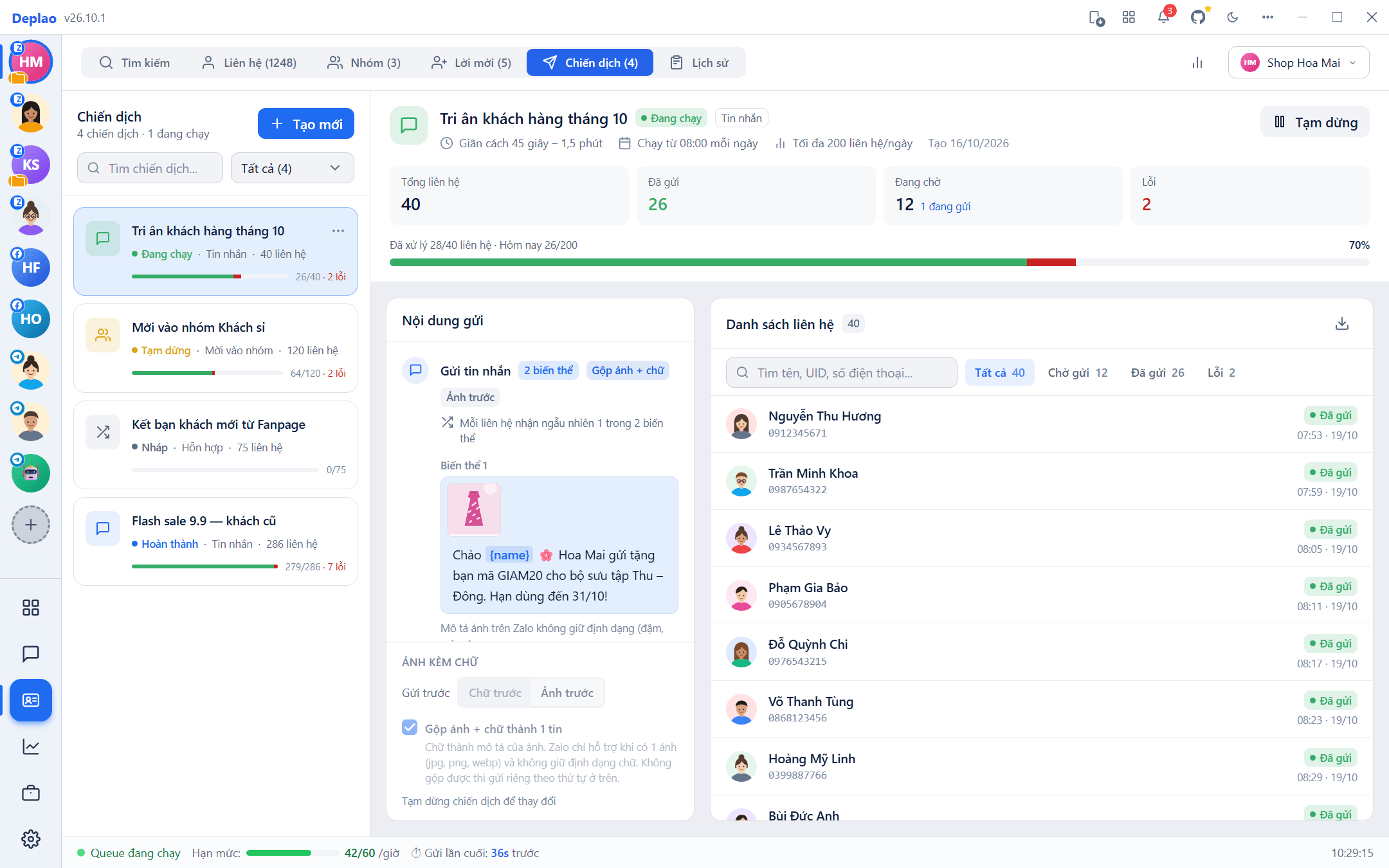
| Campaign type | What it sends |
|---|---|
| Message (Tin nhắn) | Text, photos, multiple content variants; sent to individuals or into groups |
| Friend request (Kết bạn) | A friend request with a note, which can include {name} |
| Group invite (Mời vào nhóm) | An invitation to one or more selected groups (friends only) |
| Mixed (Hỗn hợp) | Tick several actions (Message, Friend request, Group invite), run one after another for each person |
- Zalo: all 4 campaign types.
- Telegram and Telegram Bot: the Message type (without Zalo-style text formatting); choose recipients from contacts, Local labels, UIDs or group members (no By phone or Zalo labels); a bot can only send to bot chats it already knows or groups it's in.
- Facebook: campaigns aren't supported yet.
Creating and running a campaign
- Create the campaign: Campaigns → Create new: enter a Name and choose a Type (Mixed: tick the Actions).
- Write the content: Content 1, 2… (the + button) are variants: Random = each recipient gets 1 random variant, All (Tất cả) = each recipient gets every variant in turn. Insert the
{name}(recipient's name) and{userId}variables; Zalo has a formatting bar (bold, italic, underline, strikethrough, 4 colors, font size) and a Tag everyone option when sending into groups; attaching photos is optional. - Spacing & schedule: Delay between contacts (2–3 min, 3–5 min, 5–10 min, 10–15 min or a Custom range, at least 30 seconds), Delay between messages (when one recipient gets several messages), Daily limit, and Start time (default 08:00).
- Add contacts: the Add contacts step offers Manual · By label · By phone (Zalo only, the number is resolved to an account at send time) · By UID · Friends · Groups · By group members. You can add more later with the Add contacts button, or from the Contacts / Groups tabs with Add to campaign.
- Run it: open the campaign → Start. Pause / Resume at any time; the Edit and Add contacts buttons in the detail view only appear while the campaign is a Draft or Paused.
Chat-style preview & photos with text
- Preview on the right of the create / edit form: shows the message as the recipient will see it (
{name}replaced with a sample name), in the exact text / photo order that will be sent; switch between variants. - The detail view has a Content to send (Nội dung gửi) section: each step every contact will receive (Step 1, Step 2…), the variants, the friend-request note and the groups to invite to.
- Photos with text (when a content variant has both): Send first → Text first / Photos first, or tick Merge photo + text (Gộp ảnh + chữ) into a single message.
- Merging on Zalo: the text becomes the photo caption, only when there's exactly 1 jpg / png / webp photo and the text has no formatting. Telegram: the text becomes the caption and several photos are sent as an album; text longer than 1,024 characters is sent separately.
- When merging isn't possible, the app sends them separately in the order you chose (the preview explains why). Change the option right in the detail view while the campaign is a Draft or Paused.
Tracking progress in real time
- Campaign list: search by name, filter Draft · Running · Paused · Completed; each card has a sent / total progress bar and an error count.
- ⋯ menu on a card: Start / Pause / Resume, Duplicate (Clone template only, or Clone exactly including the customer list), Delete campaign.
- Detail view: spacing, daily run time, daily limit; 4 tiles (Total contacts · Sent · Pending · Errors) and a Processed x/y bar (plus Today a/b when there's a limit) that update as messages go out.
- The campaign's contact list: search by name / UID / phone, filter All · Pending · Sent · Errors, see each person's error and send time, export to CSV.
- Mixed campaigns: recipients with a failed action (e.g. the message went out but the friend request failed) show Partially sent (Gửi một phần) with the failed action, and there's a Partial errors filter; if every action failed, it shows Error.
- History tab: the send log for all campaigns, filterable by campaign, date range, status and send type (Message / Friend request / Group invite); click a row for details; Export CSV.
- Once the whole list has been sent, the campaign switches to Completed on its own; see success and response rates in Reports → Campaigns (Báo cáo → Chiến dịch).
Spacing & sending safely
The more actions, the longer the content and the shorter the delay, the higher the risk of being flagged as spam. Configure carefully and always follow the platform's community guidelines. (This warning also appears in the campaign form.)
- Between two contacts, the app waits a random time within the chosen Delay, at least 30 seconds; when one recipient gets several messages, they're spaced by the Delay between messages (by default they go out back to back, about 1 second apart).
- Daily limit: once the day's quota of contacts is reached, the campaign pauses and resumes at the next day's Start time; if today's start time has already passed, the campaign runs right away.
- Running campaigns of the same account share one queue. The status bar at the bottom of the CRM page shows the running Queue, the Quota (60 actions per hour per account, refilling 1 per minute) and the last send.
- Zalo campaigns only send while the account is connected; running campaigns resume automatically when you reopen the app.
- Group invites only work for people who are already friends; the Common error codes section in the form helps you find out why a group invite failed.
Didn't find your answer?
Message us on Telegram