Internet & Cloud
An Internet address for remote employees, the API and payments; encrypted backup and sync to Cloudflare R2 or Google Drive, and restore to a new computer.
One page for everything that needs the Internet and your own cloud: an address so remote employees, the API, payment gateways and webhooks can reach your computer; storing photos and files and backing up your data (encrypted on your machine) to Cloudflare R2 or Google Drive; and restoring onto a new computer when needed.
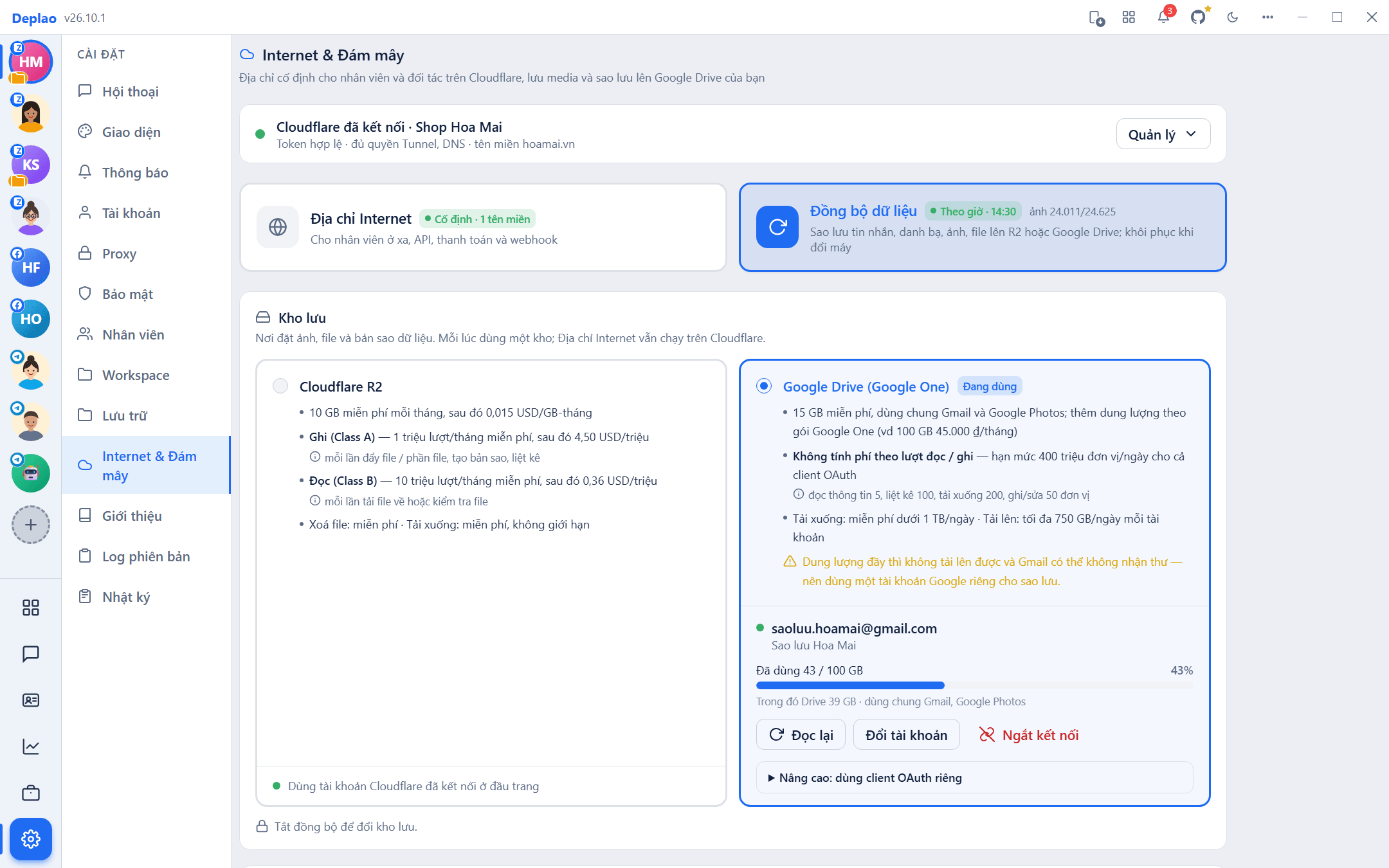
- Where: Settings → Internet & Cloud (Cài đặt → Internet & Đám mây). Only on the host machine; employee machines don't see it.
- Two parts: Internet address (Địa chỉ Internet; remote employees, API, payments, webhooks) and Data sync (Đồng bộ dữ liệu; backing up messages, contacts, photos and files, and restoring when you change computers).
- Optional and off by default: if you don't turn it on, the app works as before and your data stays only on your machine. Everything uses your own Cloudflare / Google account.
- A red dot next to Internet & Cloud = something needs your attention: a broken token or missing permission, an address error, a sync error, or a recent restore with automation still paused.
Connecting your Cloudflare account
Needed for a fixed address (Cloudflare automatic) and for Cloudflare R2 storage. If you only use the Temporary address, ngrok or Google Drive storage, you don't need Cloudflare.
- Create a token: at the top of the page, click Create token on Cloudflare (Tạo token trên Cloudflare), Cloudflare opens with the permissions prefilled → Continue to summary → Create Token → copy the token.
- Paste the token and Account ID: the Account ID is 32 characters long; find it on your domain's Overview page in Cloudflare or in the address bar at
dash.cloudflare.com/<Account ID>. - Click Connect (Kết nối): Deplao checks the token, reads your list of domains and tests the permission for each feature. The token is stored encrypted on this computer.
What permissions does the token ask for?
| Permission | Used to |
|---|---|
| Cloudflare Tunnel: Edit | Create the "tunnel" that connects your computer to the Internet for a fixed address |
| DNS: Edit | Create a subdomain (e.g. shop.yourdomain.com) pointing at that tunnel |
| Zone: Read | Read the list of domains you've added to Cloudflare |
| Workers R2 Storage: Edit | Create a storage bucket for photos, files and data backups |
| Account Analytics: Read | Read the whole account's R2 usage for the Usage & cost card; without it, only Deplao's own operations on this computer can be counted |
Things to know about the Cloudflare connection
- Deplao only creates tunnels, subdomains and buckets named
deplao-…; nothing else in your Cloudflare account is touched. - To use R2 storage you have to enable R2 on your account (Cloudflare → R2 Object Storage). Cloudflare requires a payment method even if you stay within the free tier.
- Once connected, the Manage (Quản lý) button offers Re-check token · Change token · Open Cloudflare · Disconnect. A token missing permissions or about to expire (≤ 14 days left) is flagged right under the account name.
- Disconnecting: the fixed address and R2 sync stop on this computer; data already on Cloudflare stays as it is.
Internet address
Your computer doesn't have a public address. An Internet address lets remote employees and outside systems reach Deplao without a VPS or opening router ports. This is the only place to turn addresses on, off or change them: the Employees, API, Webhook, Integrations and Workflow screens just display the address and link back here.
Three services, each with its own switch
| Service | Port | Used for |
|---|---|---|
| Employees & API (Nhân viên và API) | 9900 | Remote employees connect to the host machine; outside systems call the API at <address>/api/v1 |
| Payments & integrations (Thanh toán, tích hợp) | 9888 | Casso and SePay send bank transfers, and sales software (KiotViet, Haravan, Sapo, Nhanh.vn, Pancake POS) sends orders / customers to /webhook/… to run the "When a payment is received" / "When sales software sends a webhook" workflows |
| Workflow webhook (Webhook workflow) | 9889 | Websites and outside services trigger workflows via /api/workflow/webhook/… |
How to create the address: pick one
| Method | Description |
|---|---|
| Temporary address (Địa chỉ tạm) | Cloudflare Quick Tunnel, no account needed. The address changes every time you restart: you have to send it to employees again and update it in Casso / SePay / your sales software. Only good for trying things out. |
| Cloudflare automatic (Cloudflare tự động; recommended) | Requires a Cloudflare connection and a domain added to Cloudflare (the Free plan is enough). Choose the Domain (Tên miền) + Host name (Tên máy; e.g. shop → shop.yourdomain.com), preview it, then click Apply (Áp dụng). Deplao creates the tunnel and subdomain for you; the address is fixed, and by default one address serves all three services. |
| ngrok | Use your own ngrok account: paste your Authtoken and a static domain (the free plan includes one static domain). Only applies to Employees & API. |
| Cloudflare manual (Cloudflare thủ công) | For people who've already created a tunnel in Cloudflare Zero Trust: paste the Tunnel token and the Public address. Only applies to Employees & API. |
In ngrok and Cloudflare manual modes, Payments & integrations and Workflow webhook still use the Temporary address (which changes every time it's turned back on). For a fixed address for all three services, choose Cloudflare automatic.
- Start when the app opens (Tự bật khi mở app): the tunnel starts again as soon as Deplao opens. In modes other than Cloudflare automatic, only Employees & API restarts on its own, and only if the employee (LAN) server also starts with the app; turn Payments and Workflow webhook back on in the service table when needed.
- The address only works while Deplao is open on the host machine.
- Changing the domain / host name or the method of creating the address makes the old address stop working: remember to update it in Casso, SePay, your sales software and website, and send the new address to remote employees.
- Advanced (Nâng cao; Cloudflare automatic): separate names for each service (shop, shop-pay, shop-hook) · Move to this machine when you change host computers · Disconnect an unknown machine running the same tunnel · Remove the tunnel and address.
Cloud store: Cloudflare R2 or Google Drive
The cloud store is where photos, files and data backups go: choose it under Data sync → the Cloud store card (Đồng bộ dữ liệu → thẻ Kho lưu). One store is used at a time; the Internet address still runs on Cloudflare regardless of the store.
| Cloudflare R2 | Google Drive (Google One) | |
|---|---|---|
| Storage | 10 GB free per month, then $0.015 per GB-month | 15 GB free, shared with Gmail and Google Photos; more space with a Google One plan |
| Reads / writes | Writes (Class A): 1 million operations/month free, then $4.50 per million. Reads (Class B): 10 million operations/month free, then $0.36 per million | No per-operation charges, a quota of 400 million units/day for the whole OAuth client |
| Upload / download | Deleting files and downloads: free | Downloads free under 1 TB/day · uploads up to 750 GB/day per account |
| Requires | A Cloudflare connection with R2 permissions, and R2 enabled on the account | A Google account (no Cloudflare needed) |
- Google sign-in happens in your computer's browser: click Sign in with Google on the Google Drive card, then approve on Google's page. Deplao can only see files it created itself (the Deplao folder in your Drive) and can't read any other files.
- Advanced (use your own OAuth client: create a free "Desktop app" client on Google Cloud by following the 4 steps shown right in the card (enable the Google Drive API, the drive.file scope, and set Publishing status to In production) if you leave it on Testing, you'll have to sign in again after 7 days), then paste the Client ID / Client secret. Your daily Drive API quota is then your own. If your Deplao build doesn't include a shared Google client, this section opens automatically and is the way to sign in.
- With your own client, any other machine that wants to restore must sign in with that same client (Deplao only sees files created by that client).
- You can only change the store while sync is off and the machine isn't acting as a standby machine. After switching, photos and files are uploaded to the new store from scratch and a new data baseline is created; the copy in the old store is kept: select the old store again to restore from it. Files already cleaned off the machine (that only exist in the old store) should be downloaded first.
- Disconnecting Google Drive: Deplao revokes its access and removes the sign-in from this computer; files already in Drive are kept.
Google storage is shared with Gmail and Google Photos: when it's full, uploads fail and Gmail may stop receiving mail, use a separate Google account for backups.
Data sync: on in 5 steps
One setup covers the data (messages, contacts, settings…) and the photos and files of the open workspace. Data is compressed and encrypted on your computer before it's uploaded to your store.
- Choose a store: the Cloud store card, Cloudflare R2 (with Cloudflare connected and the right permissions) or Google Drive (signed in to Google).
- Choose accounts and time range: Accounts, All (including accounts added later) or Choose accounts. Time: Everything or From date; "From date" limits message history and photos / files by time, while contacts, groups and settings of the selected accounts are still fully synced.
- Choose the mode: Hourly (Theo giờ), pushes changes every hour. Realtime: at most 5 seconds behind. If nothing has changed, the store isn't called. Off (Tắt): stops syncing; existing backups are kept and can still be restored.
- Include photos, videos and files: on by default, photos and files upload gradually in the background, optionally including Shared files (File chung; media library, tasks, uploaded files). Untick it to sync only messages, contacts and settings.
- Click Turn on sync (Bật đồng bộ): the first time, Deplao asks for a backup password (mật khẩu sao lưu; at least 8 characters, entered twice, plus a confirmation tick) and immediately takes a baseline snapshot: copy the DB → filter by scope → compress → encrypt → upload. After that, only changes are pushed.
Keep your backup password safe. The copy in your store is encrypted with this password; new machines and standby machines must enter it exactly when restoring. Forget the password and the copy in your store is lost: write it down somewhere safe.
- While syncing, the setup collapses into a one-line summary; click Change (Thay đổi) to edit it. Changing accounts / time range when a copy already exists in the store creates a new baseline that replaces the old one (photo files already uploaded are kept).
- Status: Data (last sync, copy in the store, scope; the Sync now (Đồng bộ ngay) and Restore… (Khôi phục…) buttons) and Photos & files (how many files have been uploaded; Pause / Resume).
- Change the password on the Backup password line → Change password; standby machines must then enter the new password.
- Each workspace on the host machine has its own folder in the store; employee machines don't upload anything. Settings → Storage (Cài đặt → Lưu trữ) has a "Media in the cloud" line for a quick look.
Photos, files and the Advanced section
The Advanced (Nâng cao) section at the bottom of the Data sync page (open by default; click its title to collapse it) groups the less common options.
- Files stay on your computer by default: the store just keeps an extra copy.
- Free up disk space (optional): "Delete local copies of old files to free up disk space" only deletes the local copy of files that are already in the store, haven't been opened in the last 30 days, and only when the drive has less than 20 GB free (both numbers can be changed). Open a file again and Deplao downloads it from the store automatically.
- Re-download all cleaned-up files to your computer when needed (requires enough free disk space).
- Photo & file transfers: number of parallel transfers, bandwidth limit (0 = unlimited), "Only run from 22:00 to 07:00".
- Also: Standby machine (Máy dự phòng), DB copies (Bản sao DB) in the store (view them, or permanently delete copies from old machines you no longer use) and the Sync log (Nhật ký đồng bộ).
Cleaning up the store: scan first, delete only after confirming
- Deleting messages in the app doesn't delete files in the store. To reduce usage, click Clean up files on R2 (Dọn file trên R2) / Clean up files on Google Drive (Dọn file trên Google Drive; requires syncing with photos, videos and files).
- Choose which files: from messages deleted in the app (default), from a specific account…, older than a date…, outside the current storage scope.
- Click Scan (Quét): it only counts the files and their size and shows sample paths, nothing is deleted yet. The scan result stays valid for 15 minutes.
- Only clicking Delete … files (Xoá … file) and confirming actually deletes: this can't be undone.
- Safe by default: files that only exist in the store (already cleaned off your computer) are kept, and local copies are not deleted; to delete those you have to tick them yourself.
Restoring to a new computer & standby machines
New computer, reinstalled Windows or a broken host machine: get your data back from the copy in your store. On the new machine with Deplao installed, click Restore data from the cloud (Khôi phục dữ liệu từ đám mây; on the "Moving from another computer?" line of the Dashboard when there are no accounts yet, or in the Add account dialog): it works for both Cloudflare R2 and Google Drive. To restore on the machine you're using now, click Restore… in the Status section.
- Connect the store: choose whether the backup is on Cloudflare R2 or Google Drive. R2: paste a Cloudflare token for this machine (tokens stored on the old machine can't be carried over). Google Drive: sign in with the same Google account you used for the backup.
- Choose the workspace: each workspace has its own copy, with the machine name, last sync, size and scope. Copies made by a newer version of Deplao are locked: update the app first.
- Enter the backup password: the password set when sync was turned on at the host machine; Deplao decrypts on this computer and never sends the password anywhere. You can also choose to restore to an earlier point in time.
- Restore the data: the workspace's data on this machine is replaced by the copy from the store. Don't close the app while restoring.
- Sign back in to your channels: your history is back; sign in to each account again (Zalo by scanning the QR code, Facebook, Telegram with your phone number, bots by pasting the token again). Photos and files download from the store when opened, or click Download all media.
- Turn automation back on: campaigns, workflows and app schedules are paused after a restore so they don't send duplicates alongside the old machine. Tick "The old machine is off or Deplao on it has been disconnected" (Máy cũ đã tắt hoặc đã ngắt Deplao), then click Turn automation back on (Bật lại tự động hoá); if you use Cloudflare automatic, you can also move the Internet address over to this machine.
Restored data doesn't reconnect your chat channels by itself. The "Data restored…" banner at the top of the Internet & Cloud page reminds you that automation is paused until you turn it back on.
Standby machine
- A second computer with Deplao, connected to the same Cloudflare account (or using Google Drive storage signed in to the same Google account) → Data sync → Advanced → Standby machine → Use this machine to follow another machine's backup… (Dùng máy này theo dõi bản của máy khác…) → pick the backup and enter the host machine's backup password.
- The standby machine downloads new changes every minute; the host machine can see which machines are following it and how far behind they are.
- If the host machine fails: on the standby machine, click Switch to this machine (Chuyển sang máy này) → sign back in to your channels → turn automation back on. Only do this once the old host is broken or switched off, so that two machines don't both send messages.
Usage & cost
The Usage & cost (Mức sử dụng & chi phí) card (below the Status section) shows how much of the free tier or billing threshold your store is using, so the bill never comes as a surprise.
- Each item has a % bar against its free allowance / threshold: it turns yellow from 70% and red above 100%, with a projection for the end of the period at the current rate.
- The Update (Cập nhật) button refreshes the numbers right away (at most once a minute). The this machine (máy này) label means the number only counts Deplao on this computer, not other machines or other apps.
Cloudflare R2: billed monthly
- Estimated cost this month and projected for the full month (USD, with an estimated conversion to VND); while you're within the free tier it says "No charges yet". The billing period is the calendar month (UTC).
- Stored data: measured in GB-months (the average of each day's peak storage); 10 GB-months free.
- Writes (Class A): each upload of a file or part of a large file, creating / completing multipart uploads, listing files; 1 million operations/month free.
- Reads (Class B): each download of a file to your computer, or check whether a file already exists in the store; 10 million operations/month free.
- Downloads: the amount of data downloaded; R2 doesn't charge for it, it's shown for information.
- Account-wide numbers require the "Account Analytics: Read" permission in the token. These are estimates based on R2 Standard pricing; your Cloudflare invoice is the source of truth (the View invoice on Cloudflare button).
Google Drive: measured daily
- No per-use charges (below the thresholds): you only pay for a Google One plan if you go over 15 GB.
- Google account storage: shared by Gmail, Drive and Photos.
- Drive API usage today: counted in "units": file info 5, list 100, download 200, write/edit 50; the free threshold is 400 million units/day for the whole OAuth client (Google has said it will charge for usage above that from late 2026).
- Downloads today: free under 1 TB/day for the whole OAuth client. Uploads today: up to 750 GB/day per account.
- "Today" follows US Pacific time. Google doesn't let apps read the usage of the whole OAuth client, so the operation and transfer numbers are Deplao's on this computer.
Security & notes
- Cloudflare tokens, ngrok / tunnel tokens and the backup password are stored encrypted on the host machine and are never shown again in the interface.
- Data (messages, contacts…) is encrypted on your computer before upload; photos and files sit in your own private store.
- Deleting from the store (file clean-up, deleting an old machine's DB copy) is permanent and can't be undone.
- Disconnecting Cloudflare / Google doesn't delete data already in the store.
- Only turn on the Internet address services you actually need; calling the API from outside still requires an API key.
- After a restore or when switching to a standby machine: only turn automation back on once you're sure the old machine is off.
Didn't find your answer?
Message us on Telegram