POS & sales integration
Connect KiotViet, Haravan, Sapo, Nhanh.vn or Pancake POS to look up customers, orders and products, create orders in the chat and run workflows on webhooks.
Connect Deplao to your sales software to look up customers, orders and products and create orders right beside the conversation: no need to open another admin page. The lookup and order-creation steps are also available in workflows, and when your sales software sends a webhook (new order, status change…), workflows run on their own.
Where to connect: left sidebar → Tools → Integrations (Công cụ → Tích hợp) → the POS / Sales (POS / Bán hàng) tab. The same page has the Shipping and Payments tabs.
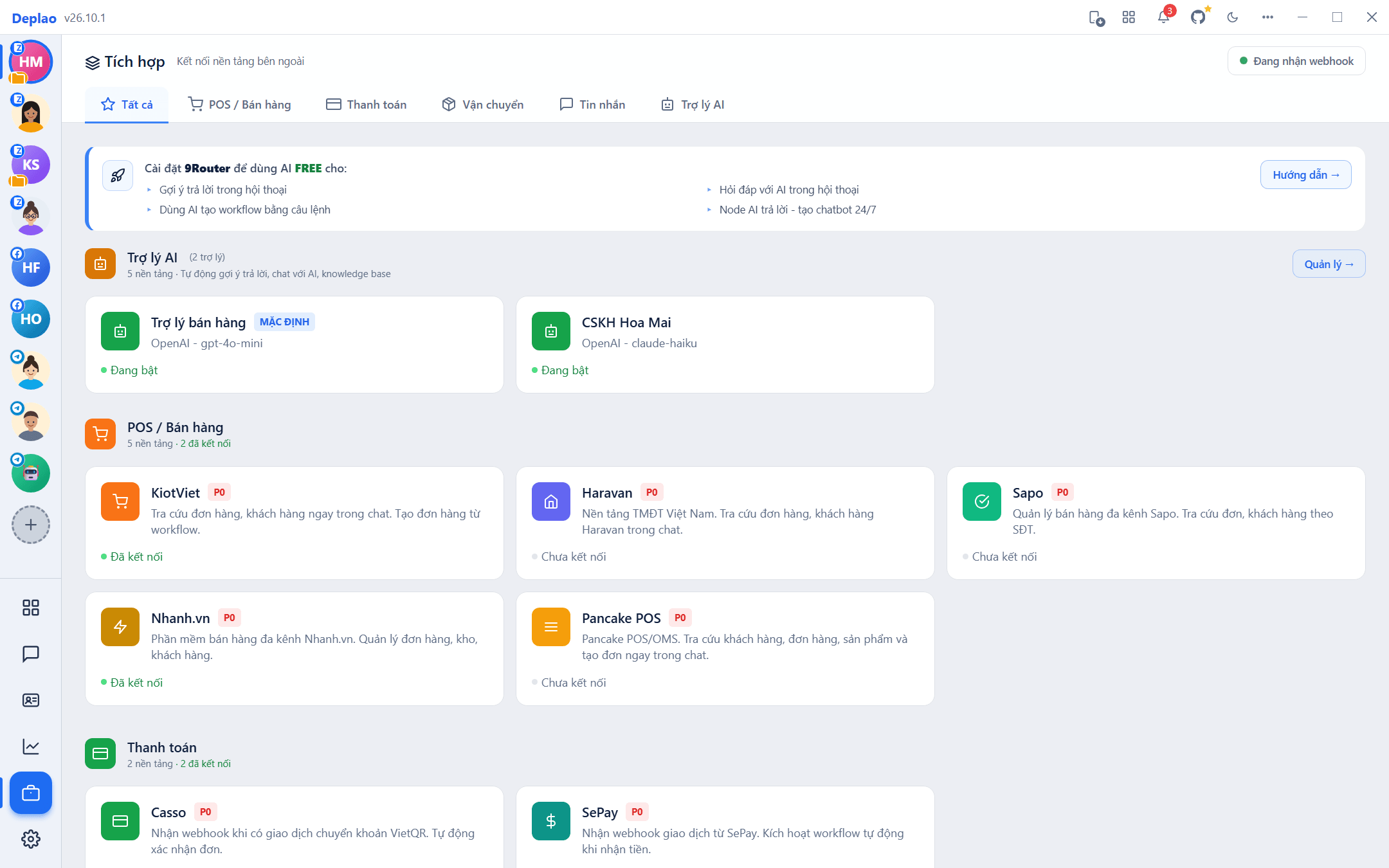
Supported platforms & what to enter
| Platform | Credentials | Notes |
|---|---|---|
| KiotViet | Client ID · Client Secret · Store name (Retailer) | Get the Client ID / Client Secret from the KiotViet admin; the store name looks like myshop. The optional Default Branch ID (Branch ID mặc định) field is the branch that receives orders created from a conversation. |
| Haravan | Access Token (recommended) · or API Key + Password (private app) · Shop name (subdomain) | You only need one of the two: an Access Token from a Haravan Custom App (recommended), or the API Key + Password of a private app, if you use an Access Token, leave the other two fields empty. Enter the shop name as myshop or myshop.myharavan.com. |
| Sapo | Store name · API Key · API Secret | Use a private app: Sapo Web → Apps → Private apps → Create private app (Ứng dụng → Ứng dụng riêng → Tạo ứng dụng riêng), grant the Customers, Orders and Products permissions, then copy the API Key + API Secret. Store name: myshop or myshop.mysapo.net. The OAuth Access Token field is optional: leave it empty. |
| Nhanh.vn | App ID · Business ID · Access Token v3 | Your Nhanh.vn Open API app details; get the Access Token at open.nhanh.vn → My apps (Ứng dụng của tôi). |
| Pancake POS | API Key (api_key) · Shop ID |
Your Pancake POS Open API key and Pancake shop ID. |
How to connect
- Open Tools → Integrations: in the left sidebar click Tools → Integrations, then choose the POS / Sales tab.
- Choose a platform: click the KiotViet, Haravan, Sapo, Nhanh.vn or Pancake POS card.
- Enter your details and click Connect: fill in the fields under Credentials (Thông tin xác thực; see the table above), then click Connect (Kết nối) to save.
- Click Test connection (Test kết nối): on success the platform card changes to Connected (Đã kết nối). If you've saved but haven't passed the test yet, the card shows Unverified (Chưa xác nhận) and the platform doesn't appear in the conversation's Quick integrations panel.
- Turn it on / pause it when needed: use the Active (Kích hoạt) switch at the top of the platform page, then click Update (Cập nhật) to save.
Receiving webhooks: run workflows when orders come in
The When sales software sends a webhook (Khi phần mềm bán hàng gửi webhook) trigger (in the workflow Trigger group) runs when KiotViet, Haravan, Sapo, Nhanh.vn or Pancake POS reports an order, invoice, customer, product or stock change: and can be filtered by software, data type, event name and status. Deplao only accepts webhooks authenticated with the correct key.
- Turn on the receiving address: Settings → Internet & Cloud → Internet address (Cài đặt → Internet & Đám mây → Địa chỉ Internet) → turn on Payments & integrations (Thanh toán, tích hợp; only works while Deplao is open on the Boss machine). See Internet & Cloud.
- KiotViet / Sapo: automatic webhook registration: platform page → the Register webhooks automatically (Đăng ký webhook tự động) section → choose the events → Register webhooks (Đăng ký webhook). Deplao creates webhooks pointing at the receiving address (KiotViet: it also creates and saves the Secret), skip steps 3 and 4.
- Other platforms: set the webhook key: Haravan / Nhanh.vn / Pancake: platform page → the webhook key field (see the table below) → Update. Do this before turning on webhooks in your sales software.
- Paste the address into your sales software: copy the Webhook receiving address (Địa chỉ nhận webhook) from the platform page and paste it into your sales software's webhook settings, using the same key.
- Create a workflow: drag in the When sales software sends a webhook trigger, choose the software and data type, and connect your processing steps.
| Platform | Webhook authentication key |
|---|---|
| KiotViet | KiotViet has no webhook admin screen: click Register webhooks automatically on the KiotViet page, Deplao creates a Secret, saves it in the Webhook Secret field and registers the selected events. For webhooks registered with another tool, paste the exact Secret (a Base64 string) that was used. KiotViet signs with the X-Hub-Signature header. |
| Haravan | The Webhook verification code (Mã xác thực webhook) field = the verification code under Settings → Notifications → Webhooks (Cài đặt → Thông báo → Webhook) in Haravan (for webhooks registered by an app: the app's Client Secret); Haravan signs with the X-Haravan-Hmacsha256 header. |
| Sapo | Click Register webhooks automatically on the Sapo page so Deplao creates webhooks for the selected topics. Sapo signs webhooks (header X-Sapo-Hmac-Sha256) with your private app's API Secret: if you've entered the API Secret, leave the Webhook key field empty. |
| Nhanh.vn | The Webhooks verify token field = the token you set in the Webhooks section of your Nhanh.vn app (Nhanh.vn sends it in the Authorization header). |
| Pancake POS | The Webhook key X-API-KEY (Khoá webhook X-API-KEY) field = a secret string you choose; when configuring the Pancake webhook, add an X-API-KEY request header with exactly that string. |
- A missing key or wrong signature → Deplao returns error 401 and doesn't run the workflow; the Webhook security (Bảo mật webhook) section on the platform page shows the most recent accepted / rejected delivery. KiotViet stops sending to addresses that return 4xx errors, and Nhanh.vn turns webhooks off after prolonged errors: so set the key in Deplao before registering / enabling webhooks.
- Each order / customer / product runs the workflow once; if the platform resends exactly the same data (after a network error), it's ignored.
- Temporary address (changes every time Deplao restarts): you have to register again after each restart, on KiotViet / Sapo click Register webhooks (Deplao's old webhook is replaced), on other platforms paste the address again. Cloudflare automatic gives you a fixed address.
- Variables for later steps:
{{ $trigger.code }},{{ $trigger.status }},{{ $trigger.customerName }},{{ $trigger.customerPhone }},{{ $trigger.total }},{{ $trigger.event }}, and raw fields as{{ $trigger.data.<field> }}.{{ $trigger.fromPhone }}= the customer's phone number, so POS lookups and "Find user by phone number" work right away. - Webhooks aren't tied to any conversation → the sending step must choose a recipient (e.g. "Find user by phone number", then send to that user) or send into an internal group / Telegram.
- If the platform doesn't send an event name: add
?event=<name>to the end of the receiving address (e.g.…/webhook/<id>?event=orders/paid) so you can filter by event name.
Right in the conversation: Quick integrations
| Action | What it does |
|---|---|
| Look up customer | By phone number: name, phone, address, order count / total spent (when the platform has the data) |
| Look up order | By phone or order code: status, products, total, shipping fee, tracking code (if any) |
| Find product | By name or code (depending on the platform): price, stock |
| Create order | Enter the customer and delivery address (required), pick products, shipping fee, discount, payment method and notes → the order is created directly in your POS |
- Open the Quick integrations (Tích hợp nhanh) panel with the chain-link button on the conversation's title bar, or the ⋯ More features (Thêm tính năng) button on the composer toolbar → Quick integrations.
- The left column only lists platforms that are connected and active; choose a platform, then an action. The + button opens the Integrations page to add a platform.
- If the conversation already has a phone number (saved in the contact info), the phone field is prefilled; the order form prefills the customer's name and phone.
- Hover an action, click the pin icon and choose an icon to pin it to the composer toolbar: next time it opens with one click. Right-click a pinned button to Change icon (Đổi icon) or Unpin (Xóa ghim).
In workflows
The POS / Sales (POS / Bán hàng) group in the node palette has steps for each platform (KiotViet, Haravan, Sapo, Nhanh.vn, Pancake): Look up customer, Look up order, Look up product and Create order (e.g. "KiotViet: Tra cứu đơn hàng", "Pancake: Tạo đơn hàng"); Sapo also has "Sapo: Tra cứu tồn kho" (stock lookup). The Create order step takes the order data as JSON, following the template in the field: to create orders by hand, Quick integrations is easier.
- The phone field of lookup steps defaults to the sender's phone (SĐT người gửi;
{{ $trigger.fromPhone }}) = the number saved for the person messaging you (saved in Conversation info or the CRM; Zalo, Telegram). If the customer's number hasn't been saved, the field is empty: the lookup doesn't query your sales software and reports not found (found = false), so you never answer a customer with someone else's order or details. - Results for later steps:
found(whether anything was found),order/firstCustomer(the first record),orders/products(lists, iterate with the Loop over list node). - Template library → POS & payment integrations (Kho mẫu → Tích hợp POS & Thanh toán) includes ready-made workflows: look up KiotViet / Haravan / Nhanh.vn orders, check loyalty points, send product quotes, track GHN shipments, notify a group when money comes in, log transactions to Google Sheets, and Sapo low-stock alerts.
Example: a customer sends their phone number → reply with their latest order
- When a message is received: Trigger keywords:
^0\d{9}$, Keyword matching: Regex → only runs when the message is a 10-digit phone number. - KiotViet: Look up order (or Haravan / Sapo / Nhanh.vn / Pancake), in the Customer phone field, click Insert variable → Message content.
- True/False branch (IF): check whether an order was found.
- Send message: the True branch sends the order code, status and total; the False branch asks the customer to double-check the phone number they ordered with.
Notes
- Every lookup queries your sales software directly, so you always see the latest numbers; sales data isn't synced into Deplao: webhooks are only used to trigger workflows.
- Employee machines: Quick integrations and Test connection run on the Boss machine (the connections and API keys live there), employees need the Integrations (Tích hợp) permission, and lookups don't work if they lose the connection to the Boss.
- The account / app you connect with needs enough permissions for customers, orders and products: if a permission is missing, lookups report an error.
- Sapo: the order-code field needs the numeric order ID (you can see it in the address of the order's detail page in Sapo).
- Editing a connection: only fill in the fields you want to change (secret fields left empty keep their old values) then click Update and Test connection again.
- If the platform reports a rate limit, wait a few minutes and try again.
Didn't find your answer?
Message us on Telegram